
WooCommerce Store Setup for Beginners (Step-by-Step Guide)
If you want to launch an online store without monthly platform fees and keep full control over your website, WooCommerce is one of the best options. A proper WooCommerce store setup isn’t just about installing a plugin—it’s about building a store that loads fast, feels trustworthy, works smoothly at checkout, and is structured for SEO from day one.
In this guide, you’ll learn the exact steps to set up WordPress + WooCommerce, configure payments and shipping, build sales-ready product pages, and optimize everything using RankMath—so you can confidently go live.
Quick note: If you follow this checklist in order, you’ll avoid the most common beginner problems like slow pages, checkout errors, and weak SEO indexing.
What You Need Before You Start
A WooCommerce store is more demanding than a simple blog because it runs dynamic processes like product filtering, cart sessions, checkout validation, and transactional emails. That’s why your foundation matters.
What to do: Prepare your domain and hosting first, enable SSL, then install WordPress and WooCommerce with a clean structure.
- Buy a brand-friendly domain name
- Choose WooCommerce-ready hosting (speed + stability)
- Enable SSL (https) across the entire site
- Install WordPress and apply essential settings
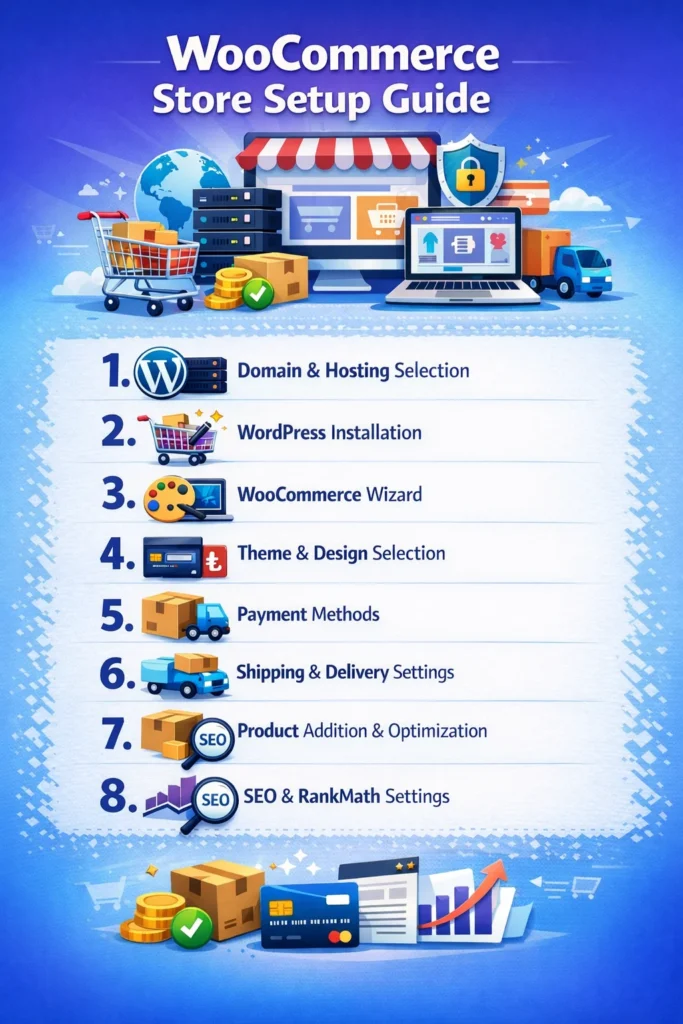
1) Choose a Domain and Hosting (The Foundation)
Your hosting affects store speed, security, and conversions. A slow store means visitors leave early, ads perform worse, and Google rankings struggle. Hosting is not a place to cut corners for e-commerce.
What to do: Select a short domain, then choose hosting that supports performance, backups, and easy scaling.
- Domain tips
- Keep it short, memorable, and easy to spell
- Match your brand name (and ideally your social media handles)
- Choose an extension based on your market: .com / .com.tr / .de / .be
- Hosting must-have features
- Free SSL (Let’s Encrypt)
- SSD/NVMe storage + good CPU/RAM
- Daily automatic backups
- Easy upgrade path as traffic grows
- PHP 8.1+ and strong database performance
- Responsive support (live chat/tickets)
2) Install WordPress and Set the Essentials
A clean WordPress setup prevents future SEO and speed issues. The most common beginner mistakes are messy URL structures, SSL redirect problems, and too many unnecessary plugins.
What to do: Install WordPress, enforce HTTPS, set SEO-friendly permalinks, and lock down admin access.
- Install WordPress via your hosting panel
- Enable SSL and force HTTPS sitewide
- Go to Settings → Permalinks → Post name
- Remove default sample content
- Avoid the username “admin”
- Use strong passwords + enable 2FA if possible
- Remove unused themes/plugins
3) Install WooCommerce and Complete the Setup Wizard
The WooCommerce wizard sets core store settings that affect taxes, invoices, checkout, and shipping. Rushing through it can create painful errors later.
What to do: Install WooCommerce, complete the wizard carefully, and verify currency/tax/shipping basics.
- Install via Plugins → Add New → WooCommerce
- Configure during setup:
- Business location and address
- Currency (USD/EUR/TRY, etc.)
- Product types (physical/digital)
- Tax/VAT basics (country-dependent)
- Shipping zones (if you ship physically)
4) Choose a Fast Theme and Design for Conversions
In e-commerce, design must build trust and make buying easy—especially on mobile. Heavy themes look nice but often slow down pages and hurt conversions.
What to do: Pick a lightweight WooCommerce-compatible theme and structure your pages to guide users toward purchase.
- Theme checklist:
- WooCommerce compatible
- Mobile responsive
- Lightweight and fast
- Conversion essentials:
- Clear CTAs: Add to Cart / Buy Now
- Trust signals: SSL, returns policy, reviews, secure payment badges
- Simple navigation: Home, Shop, Categories, Contact
- Homepage structure:
- Category/product entry points
- Featured products
- Promotions
- Short trust messages (shipping, returns, payments)
5) Set Up Payments (Don’t Skip Testing)
Checkout is where sales are won or lost. Even minor friction—slow load, errors, or too many fields—can cause cart abandonment.
What to do: Install a payment gateway, run test orders, and simplify checkout for higher conversions.
- Payment options:
- Credit/debit card gateway
- Bank transfer
- Cash on delivery (where available)
- Testing checklist:
- Place a full test order
- Test a failed payment scenario
- Confirm order emails for customer + admin
- Conversion tips:
- Reduce unnecessary checkout fields
- Show security and returns clearly near checkout
6) Configure Shipping and Delivery Rules
Shipping costs and delivery times strongly influence the final buying decision. Surprise shipping fees are a top reason people abandon carts.
What to do: Create shipping zones, set transparent shipping rules, and show delivery expectations clearly.
- Go to WooCommerce → Settings → Shipping
- Shipping models:
- Flat rate
- Free shipping over a threshold
- Weight/item-based shipping (advanced)
- Best practices:
- Display delivery time and return policy on product pages
- Make free-shipping thresholds visible
7) Add Products and Build Sales-Ready Product Pages
Your product page is your sales page—and also your SEO landing page. Thin content and generic descriptions make it harder to rank and harder to sell.
What to do: Write benefit-led content, add optimized images, and build trust with clear policies.
- Product page essentials:
- Clear product title
- Short description focused on benefits
- Long description: features + use cases + FAQ
- Compressed images + ALT text
- Variations and stock:
- Set up size/color variations correctly
- Enable stock management
- Trust elements:
- Returns window, warranty, shipping time
- Reviews and Q&A if available
8) RankMath SEO Setup for WooCommerce (From Day One)
SEO works best when structured early. RankMath helps you set templates, sitemaps, schema, and indexing rules—so your products and categories get discovered faster.
What to do: Enable sitemaps, confirm Product schema, optimize product/category meta, and manage filter pages properly.
- RankMath essentials:
- Enable sitemaps for products + categories + posts
- Product pages should use Product schema
- Create consistent meta templates for store pages
- Product SEO checklist:
- Use the focus keyword naturally
- Write a unique meta title and description
- Avoid thin content (aim for 300–600+ words where appropriate)
- Add ALT text to images
- Category SEO checklist:
- Add a short intro text to category pages
- Write category descriptions
- Technical SEO:
- Noindex filter/parameter pages if needed
- Check canonical settings
Final Pre-Launch Checklist (Go Live Safely)
Before you publish, test everything like a real customer would. This is how you prevent lost sales.
What to do: Run checkout tests, verify emails, connect Google tools, and confirm legal pages.
- SSL active on all pages (HTTPS)
- Mobile view looks correct
- Cart → Checkout → Order Complete works
- Transactional emails arrive correctly
- Google Search Console connected
- Sitemap submitted
- Legal pages published (Privacy/Cookies/Returns/Terms)
FAQ (RankMath FAQ Schema Ready)
What is WooCommerce and who is it for?
WooCommerce is a WordPress e-commerce plugin ideal for small to medium businesses that want full control, SEO flexibility, and scalable features without being locked into a monthly platform plan.
How long does a WooCommerce store setup take?
A basic WooCommerce store setup can be done in a day. A fully sales-ready store (products, payments, shipping, SEO, testing) typically takes a few days.
Is WooCommerce free?
WooCommerce is free to install. Costs usually come from domain, hosting, premium themes/plugins, and payment/shipping integrations.
Do I need RankMath for WooCommerce SEO?
You can run a store without RankMath, but it significantly improves how you manage metadata, sitemaps, schema, and indexing—especially for product and category pages.
Why is my WooCommerce store slow?
Common reasons include low-quality hosting, heavy themes, too many plugins, unoptimized images, and missing caching. Fixing these can improve both SEO and conversions.
Should I write long descriptions on product pages?
Yes, especially for SEO and conversion. A strong product page explains benefits, answers objections, and provides enough detail to reduce returns and customer support questions.